
Naver Map provides full English language support on iOS and Android devices, syncing automatically with system preferences or manually via the in-app settings menu. Setting up the English interface unlocks real-time subway and bus schedules, English road search, and 3D indoor maps across South Korea. Overseas travelers can also register an account using an international phone number to bookmark places for seamless trip planning.
Why Naver Map Is Essential for Traveling in South Korea
Navigating South Korea with international mapping applications like Google Maps can present unexpected challenges. Due to South Korean spatial data security regulations, foreign map services offer limited functionality, often failing to provide reliable turn-by-turn walking navigation or real-time public transportation updates. Naver Map functions as the premier navigation app in South Korea, offering full spatial mapping, updated transit data, accurate street views, and detailed business listings.
For international visitors, using Naver Map is central to moving efficiently between major destinations, regional travel hubs, and local neighborhoods. While South Korea features modern transit systems, navigating bus routes, subway transfers, and pedestrian alleys requires a map service optimized for local infrastructure. Understanding how language options function in South Korea provides essential context for trip preparation, as discussed in Is Seoul English Friendly? 3 Things to Know Before You Go.
By setting Naver Map to English, travelers gain access to real-time subway schedules, localized bus arrivals, walking paths, and store location details without requiring full fluency in the Korean language. The app functions reliably in major metropolitan regions like Seoul and Busan, as well as rural areas across Jeju Island and Gangwon-do.
How to Change Naver Map Language Settings to English
Naver Map automatically detects and syncs with the default system language on both iOS and Android smartphones (as of September 2026, Naver Help Center). If your smartphone's system language is set to English prior to installation, Naver Map will typically launch in English automatically upon initial startup.
If the application launches in Korean or if you need to switch language preferences manually, follow this clear step-by-step process within the mobile app interface:
- Open the Naver Map application on your iOS or Android mobile device.
- Tap the MY profile icon or open the main sidebar menu (☰) located in the upper corner of the search bar screen.
- Select the Settings gear icon (⚙️) to enter the application configuration menu.
- Tap the Language option (displayed as 언어 in Korean).
- Select English from the list of supported languages to apply the interface update immediately.
On iOS devices, language settings can also be modified directly through the primary system preferences menu by navigating to Settings > NAVER Map > Preferred Language and choosing English (as of September 2026, Naver Help Center).
- Supported Operating Systems
- iOS and Android
- Primary Setting Path
- MY / Menu (☰) > Settings (⚙️) > Language (언어) > English
- iOS System Path
- Settings > NAVER Map > Preferred Language > English
- Data Source
- Naver Help Center (as of September 2026)
Setting Up an Account and Saving Favorite Locations
Saving favorite places, hotel locations, cafes, and transportation hubs simplifies daily navigation in South Korea. While basic navigation functions without logging in, establishing a Naver account enables bookmarking places into custom lists, assigning color-coded pins, and syncing saved locations across multiple devices.
International travelers can register for a standard Naver account using overseas contact details. Non-Korean phone numbers with international country codes are fully supported for receiving account verification SMS codes during account creation (as of September 2026, Naver Help Center).
Once registered and logged in, saving a venue is straightforward:
- Search for the venue or tap its pin on the map interface.
- Tap the star or bookmark icon labeled Save on the venue detail card.
- Assign the location to a custom list, such as "Hotels," "Restaurants," or "Day 1 Itinerary."
- Add personalized text notes in English, such as operational details, target subway exits, or specific reservation times.
Organizing bookmarks prior to departure reduces search friction while walking through high-density commercial zones or transfer stations.
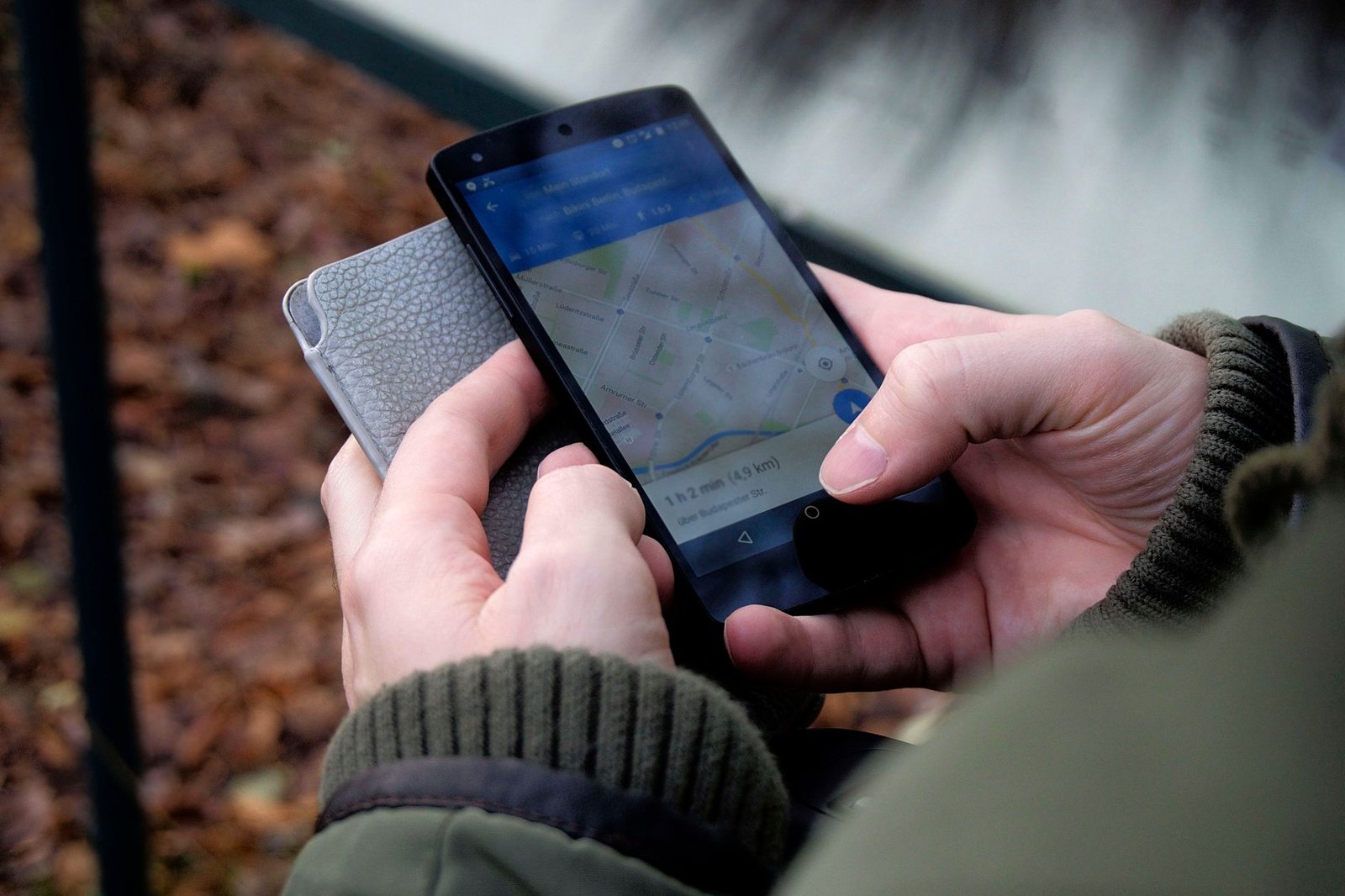
How to Search Addresses and Landmarks in English
Searching for locations in Naver Map using English text works effectively for major landmarks, subway stations, hotel names, and popular tourist destinations. However, understanding how address processing works in South Korea helps prevent search errors.
You can search for places using English road-name addresses, general place names, or local Korean phone numbers (as of September 2026, Naver Help Center). Inputting a business phone number directly into the top search bar (with or without hyphens) frequently retrieves the exact venue listing when English spelling variations cause failed queries.
Local Search Tip: When searching for niche spots, small cafes, or specific clinics, copying and pasting the Korean address or Hangul name yields the highest accuracy. You can use translation tools to retrieve accurate local text, as explained in How to Maximize Korean-Japanese Nuance Accuracy in Naver Papago: Practical Settings & Tips.
When searching by address, ensure you enter the official South Korean road-name address structure (e.g., street name followed by building number). If a location fails to appear in English, searching with the land-lot (Jibun) address or using a landline phone number provides an effective alternative.
Navigating Public Transit, Subways, and Buses in Naver Map
Naver Map delivers precise routing instructions for South Korea's extensive public transit networks. When searching for routes between two points, selecting the transit icon generates real-time options including subways, city buses, express buses, and regional train routes.
The application provides live transit arrival times, real-time bus vehicle locations, and specific car transfer guidance in English when the app is set to English mode (as of September 2026, Google Play Store / NAVER Corp). Subway station names and exit numbers are fully displayed in English, simplifying orientation inside large interchange terminals (as of September 2026, Visit Korea / Naver Help Center).
Major municipal bus stops provide English translations and romanized names within the app interface. However, some minor local bus stops in rural regions may still display primary names in Korean script (as of September 2026, Visit Korea / Naver Help Center). Following route numbers and real-time GPS vehicle trackers compensates for untranslated stop names.
For journeys requiring point-to-point car transportation or taxi hailing, travelers can also examine complementary ride-hailing tools detailed in Kakao Taxi Payment Fix: How to Use Foreign Cards Easily.
Using Walking Directions and Street View Features
Walking directions in Naver Map offer step-by-step turn guidance, overhead bridge instructions, underground passage directions, and estimated walking times based on real-time pedestrian paths. The blue navigation dot tracks your physical movement and orientation via built-in smartphone sensors.
When navigating dense urban alleys or complex multi-level structures, 3D indoor map overlays and Street View (Panorama View) remain fully accessible and functional in English interface mode (as of September 2026, NAVER Corp / Apple App Store). Street View allows travelers to inspect street corners, building exteriors, subway exit stairs, and store signs before arriving on site.
- To activate Street View, tap the location on the map, then tap the photo thumbnail or camera icon displayed on the place detail card.
- To inspect indoor floor layouts for major malls and transit hubs, zoom in on the building until indoor room outlines and floor selectors appear.
Essential Tips for Troubleshooting Common Navigation Issues
Even with English settings active, unexpected navigation issues can occasionally occur during travel across South Korea. Being aware of common technical quirks ensures uninterrupted navigation.
Common Pitfall: Relying exclusively on long English address strings converted from external websites can result in search failures. If Naver Map returns no results for an English address, search using the venue's phone number or paste the Korean address directly into the search bar.
If live GPS location tracking drifts or faces directional delay, recalibrate your smartphone compass by moving the device in a figure-eight motion or stepping away from dense high-rise structures that block satellite signals. Additionally, check that background location permissions remain enabled in your phone's system settings.
In summary, setting up Naver Map in English gives travelers a powerful tool to navigate South Korea's subways, buses, and walking routes reliably. Confirming your language preferences, saving key destinations prior to daily outings, and using phone numbers for local searches ensures stress-free navigation throughout your travel across South Korea.
Sources checked October 2026: realinfotrip.com, vercel.app, naver.com, trip.com, facebook.com, reddit.com. Prices and opening hours change — check the official site before you go.